A flight simulator on a Chromebook: what runs in a browser tab
You can fly on a Chromebook: what runs in a browser tab, which graphics setting to pick and how to get a smooth picture with nothing to install.
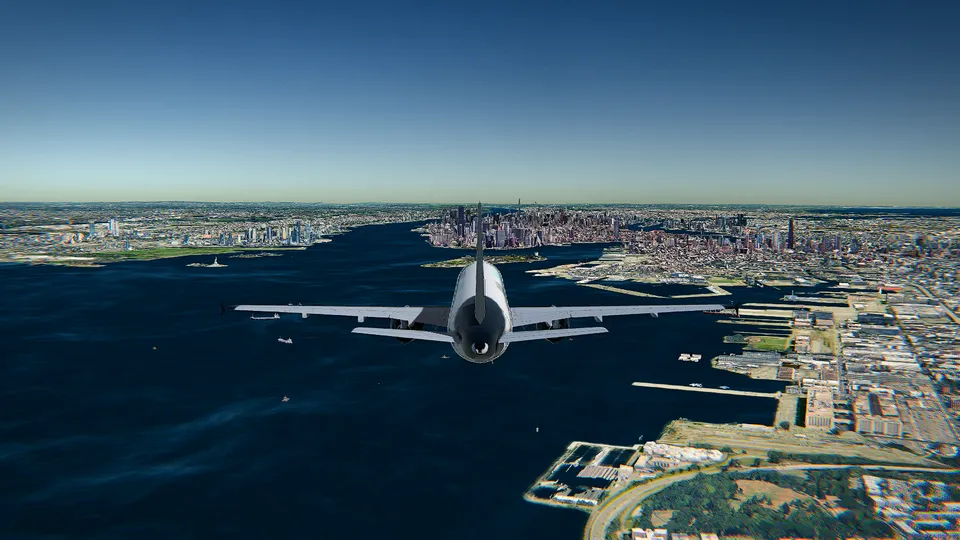
A Chromebook is probably the last computer anyone pictures when they think of a flight simulator. The same goes for the laptop your job handed you: locked down, nothing installable, integrated graphics, a fan that already complains during a video call. Both of them can fly.
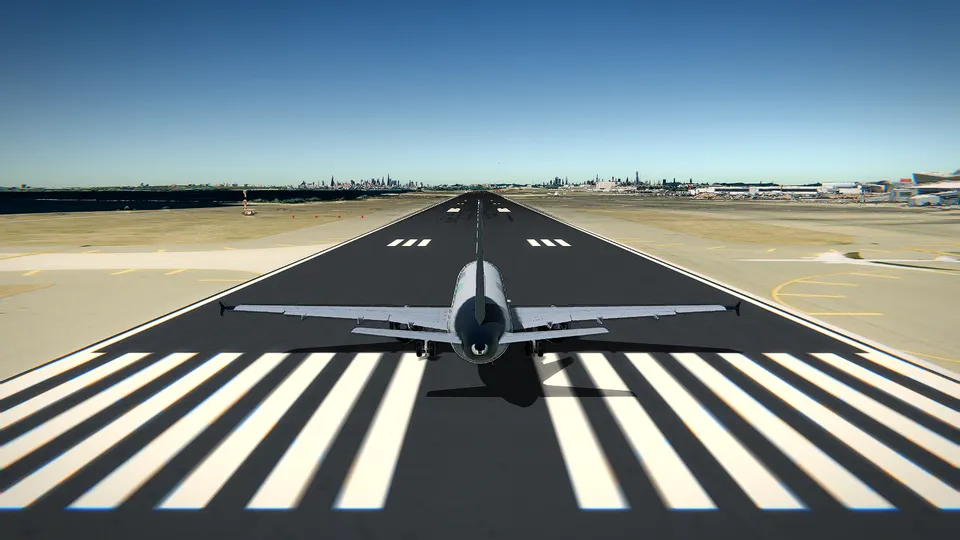
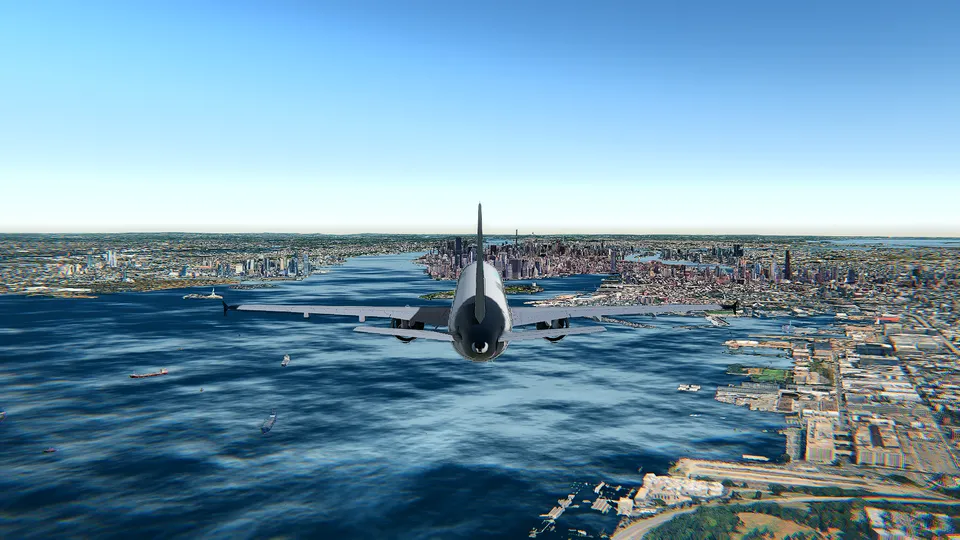
I make Open Flight World, a flight simulator that runs in a browser tab, and the reason it works on machines like those is simple: there is nothing to download and nothing to install. You open a page, pick an aircraft and an airport, and you are lined up on a runway. There is no account either. The Cessna 172 at London City (EGLC) is free, in photorealistic 3D, with no ads and no time limit.
What follows is the practical part: what a simulator in a tab really asks of a computer, which graphics setting to use on a modest one, and the handful of habits that make the picture smooth.
What actually runs in the tab
Open Flight World draws the real planet with CesiumJS, the open-source 3D globe library, and renders it with WebGL, the 3D graphics that every modern browser already has. The world streams in as you fly, the way a map does, so nothing is stored on your disk and nothing has to be updated.
That is the whole requirements list: a modern browser and an internet connection. On ChromeOS that means Chrome, which is already there and already up to date. On a work laptop it means no admin rights, no installer and no favour from whoever manages the machine: it is a web page, and you can close it.
It is also a full simulator, not a demo loop. Ten aircraft, each with its own 3D cockpit, from the Cessna 172 and the Cirrus SR22 up to the Pilatus PC-12, the ATR 72-600, the Challenger 350, the Airbus A320neo, the Boeing 787-9, the A380, the F-16 Falcon and an 18 m sailplane. Six of them fly on JSBSim, the open-source flight dynamics of FlightGear. They are all on the aircraft page, with their figures.
The three graphics settings
On a light machine this is the decision that matters. There are three:
- 3D terrain. The relief and the imagery of the real world, with no 3D buildings and no clouds. It is the lightest of the three and the one meant for any laptop, and for phones and tablets as well. This is the Chromebook setting.
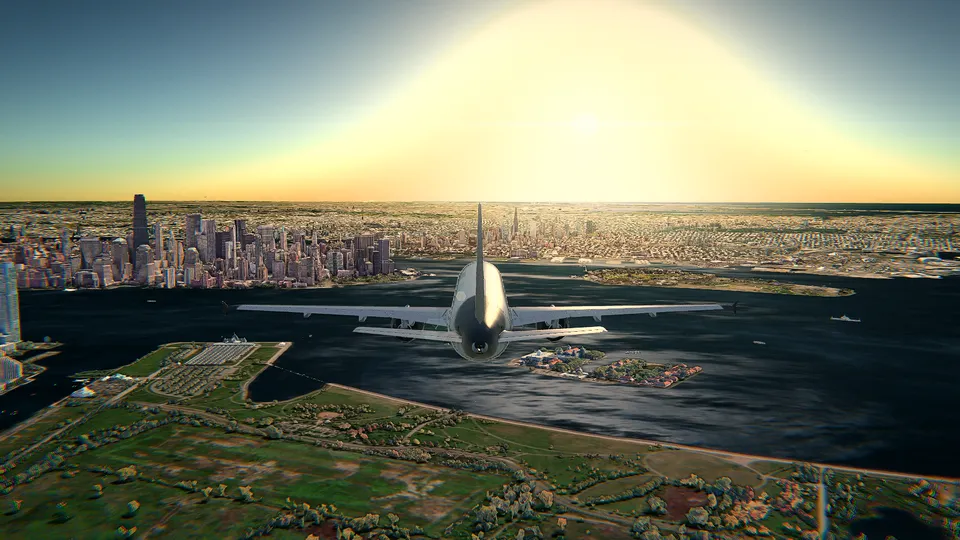
- 3D terrain and buildings. Adds Google's photorealistic 3D cities, volumetric clouds and soft shadows. Meant for most computers with a graphics card.
- 3D terrain and buildings HD. All of it at its sharpest, for gaming laptops and desktops.
The first time you fly, the simulator picks one by looking at your graphics card, so you do not have to decide anything to get going. If the frame rate stays low once you are in the air, it offers you the lighter setting. It never switches by itself, so the choice stays yours in both directions: on a modest machine you are perfectly free to try the cities, see how it feels, and step back down.
My advice for a Chromebook or a thin work laptop: start on 3D terrain, fly a circuit, and only then try the setting above it. Flying smoothly over plain terrain is much more fun than stuttering over beautiful buildings.
Eight things that make the picture smoother
- Plug it in. On battery, laptops and Chromebooks quietly slow the processor and the graphics down to save power, and nothing you change in the simulator will make up for that.
- Close the other tabs. A 3D globe wants memory, and a row of twenty tabs is the usual reason a Chromebook runs out of it.
- Leave hardware acceleration on. In Chrome it is in the settings, under System, as the graphics acceleration option. If you are curious about what the browser is really doing, chrome://gpu tells you.
- Shrink the window if you must. Every pixel is work. A smaller window is an ugly fix that works instantly, and it is worth knowing on a high resolution screen, where full screen can mean four times the pixels of a 1080p panel.
- Hide what you are not using. T hides the traffic and H hides the HUD: fewer things to draw and a cleaner windshield.
- Give the scenery a moment. The first seconds of a flight are also the first seconds of downloading that piece of the planet. If it looks soft, wait before you judge it.
- Start with the Cessna at London City. It is the free combination, it is slow, and it is the aircraft the coach is built around: one runway along the docks, the Thames beside it and the whole of London ahead.
- Use the keyboard. Mouse flying (M) on a Chromebook trackpad is harder than it needs to be. The keyboard (K) is precise and costs nothing.
Flying with what a Chromebook has
The controls are built so that a trackpad is no handicap. The arrows ask the aircraft for a rate of turn: tap ← and let go and it holds the bank you left it at, tap ↓ and the nose stays where you put it. There is nothing to hold down and nothing to trim. Power is Shift and Ctrl, or 9 for full and 0 for idle. The rudder is , and ., the flaps are [ and ], and Space brakes.
If you do have a gamepad, connect it over USB or pair it over Bluetooth and press J: a controller the browser recognises works straight away. The whole layout, drawn on your own device, is in the simulator with F1, and written out in the controls cheat sheet.
Keep the coach on, the Simple mode in that same F1 guide. It tells you the next thing to do, with the key of the device you are using, from the takeoff flaps to the flare.
Your first flight, in about five minutes
- Open the simulator and choose the Cessna 172 at London City.
- Press F1 and leave the coach in Simple.
- One notch of flaps with [, full power with 9, and rotate at the speed the coach calls.
- Climb away over the Thames, then follow the coach back round to the runway.
- R starts the flight again, P pauses, V replays the last minute, C changes the camera.
For the longer version there is a beginner's guide to flying in a browser, a guide to taking off and one to landing the Cessna 172. The autopilot (A) can also fly an approach to any runway and land, which is worth watching once: that is in how to use the autopilot.
When London City is not enough
The free flight is the Cessna at London City, for as long as you like. The rest of the planet in 3D, the other nine aircraft and every other airport are the paid part: unlock an aircraft or an airport once and it is yours to keep, or open everything with All Access, which is also what lets you start your flight beside a real aircraft that is in the air at that moment. It is all on the pricing page, the airports are on the airports page, and if you want ideas I wrote about the best airports to fly in a simulator and about real-time weather and live air traffic.
One more thing worth knowing if the screen you are using belongs to a school or an office: the simulator can be embedded in a web page, which is often the easiest way to put it in front of a class or a team.
So, yes
A Chromebook will not out-draw a desktop with a graphics card, and 3D terrain is a plainer world than Google's photorealistic cities. But the flying is the same flying: the same physics, the same cockpit, the same runway in the same place on the real Earth, with the weather that is outside right now. Starting on the lightest setting is no compromise on the part that matters.
Frequently asked questions
Can you really run a flight simulator on a Chromebook?
Yes. Open Flight World runs in a browser tab with WebGL, so there is nothing to download and nothing to install. On a Chromebook use the lightest of the three graphics settings, 3D terrain, and the Cessna 172 at London City is free to fly with no account.
Which graphics setting should I use on a Chromebook or a light laptop?
3D terrain: the relief and the imagery of the real world, with no 3D buildings and no clouds. It is the setting made for any laptop, and for phones and tablets too. The heavier settings add Google's photorealistic 3D cities, volumetric clouds and soft shadows, and want a graphics card.
Do I need to download or install anything?
No. It is a web page. You need a modern browser and an internet connection, which also means no admin rights and no installer on a work laptop.
Why is my frame rate low, and what can I do about it?
Usually a graphics setting that is heavier than the machine, or a laptop running on battery with twenty other tabs open. Plug it in, close the tabs, leave hardware acceleration on in the browser and make the window smaller. If the frame rate stays low in flight, the simulator offers you the lighter setting; it never changes it by itself.
Can I fly without a mouse, on a trackpad?
Yes, and the keyboard is the better choice there. Press K for the keyboard: the arrows roll and pitch, the comma and full stop are the rudder, Shift and Ctrl set the power. Press F1 to see every key drawn on your own keyboard.